LIGHT. MATH. YOUR NEXT BUILD.
Interactive particle backgrounds for websites
Particle backgrounds range from barely visible dust to structured waves and bright moving trails. This collection compares six Striktly effects by their visual behavior, so you can choose the kind of motion your page needs before tuning the point count, scale and palette.
STATIC PREVIEWS / OPEN A SHADER TO TRY IT LIVE

Particles / suspended dust
Drift
Suspended dust adds depth without a rigid grid. Start with fewer, slower points for a quiet introduction.
Settings and integration reference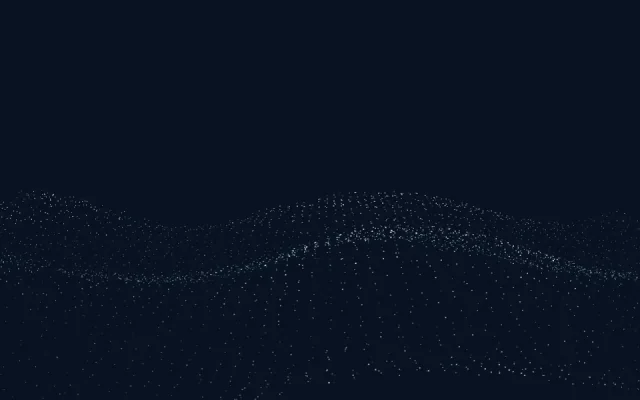
Particles / rolling waves
Tide
Fine points form a rolling wave field. A good starting point when you want a visible flowing structure.
Settings and integration reference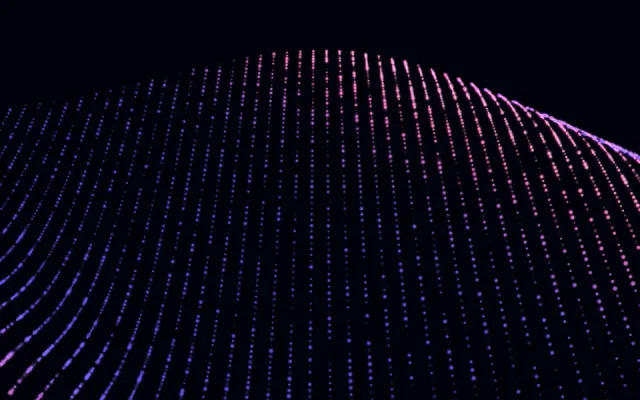
Particles / luminous folded fabric
Photon Fabric
A folded lattice makes depth and geometry more apparent. Try it in a feature panel with room for the crests.
Settings and integration reference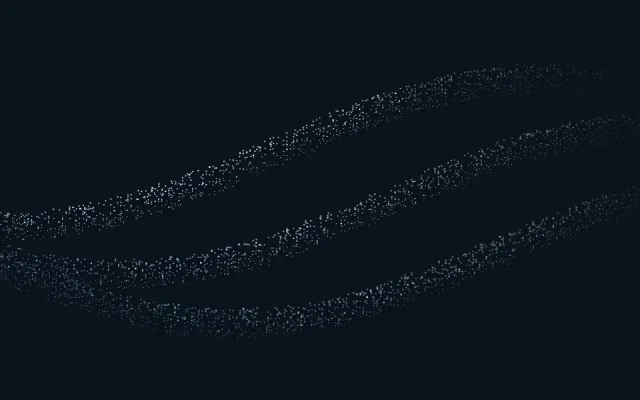
Particles / dancing ribbons
Flock
Coordinated ribbons of points create larger gestures. Keep other page animation modest alongside it.
Settings and integration reference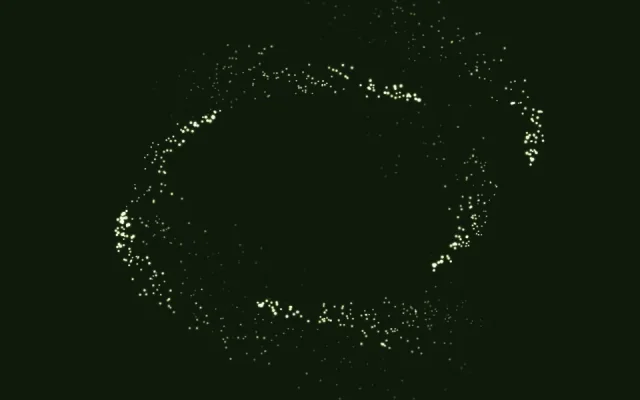
Trails / wandering sparks
Firefly
Independent sparks and shorter wakes give the scene a scattered rhythm. Tune density and trail settings in the editor.
Settings and integration reference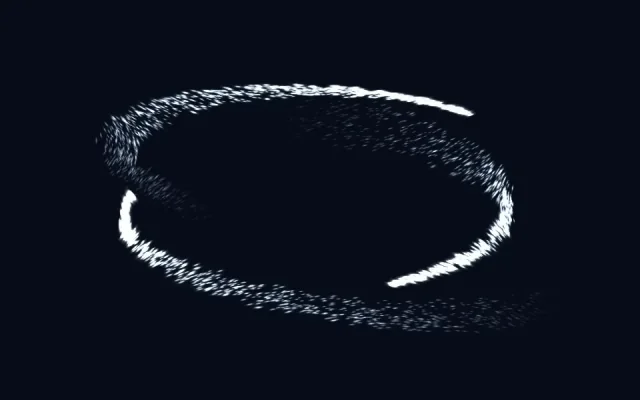
Trails / luminous wake
Comet
Bright moving heads emphasize paths and trails. Best in a focused panel where the motion is part of the story.
Settings and integration referenceChoose depth, structure or trails
Drift is the quietest starting point here: suspended dust with layers of depth. Tide forms rolling point waves. Photon Fabric uses a regular luminous lattice, while Flock moves points in larger coordinated ribbons. Firefly and Comet emphasize bright heads and particle wakes rather than a full field.
Use a smaller decorative panel when a dense particle effect competes with product information. A hero can support a larger field, but leave stable space for text and controls. Reducing contrast or the number of points can matter as much as reducing speed.
Try the interaction before choosing
Open a shader to see how its own cursor response works. Field effects, fabric-like folds and dispersing trails respond differently. Supported density, size, depth and trail controls vary by shader; the individual editor and reference list the actual settings.
These gallery images are static. No particle simulation runs on this collection page. The live editor is the place to compare motion, then save or export the configuration you choose.
Integrate one effect at a time
Download the selected shader's kit through the normal member flow. Use the JavaScript integration guide or adapt the React hero tutorial with the component, configuration and stage styles from your own kit. A downloaded runtime supports its selected effect; changing its ID does not load a different particle renderer.
For a Next.js project, keep rendering inside a client component. Keep the content in real HTML above the decorative canvas, and clean up the renderer when the view unmounts.
Budget for mobile
Point count, screen coverage, trails and the rest of the page affect rendering cost. Start with one active effect, cap the pixel and frame-rate budget, and test the final composition on real devices. Touch visitors should not have to hover to access information. Provide a static fallback and a pause control, and honor reduced motion. The performance guide explains how to combine those states.
Live previews are public; exports require a verified account. Complete access is free during the launch offer, with current membership details here.
For a smoother field of color, browse animated gradients. For continuous reflective surfaces, explore liquid metal backgrounds.